Instagram followers increase ios
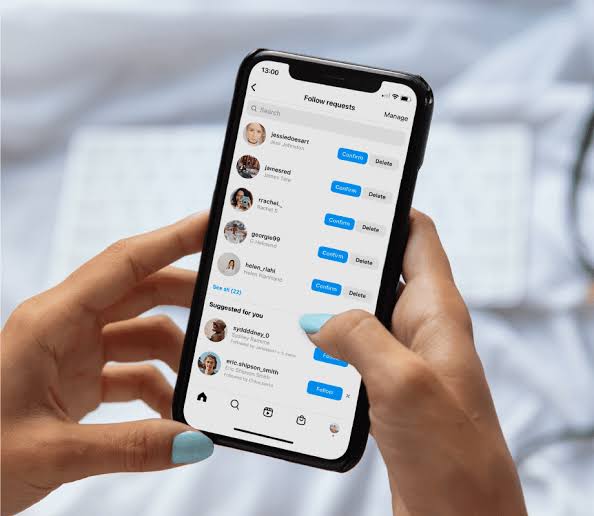
Owning an iPhone or iPad not only provides a smooth user experience but also unlocks numerous advantages when building content on Instagram. Thanks to the seamless optimization between hardware and software, the iOS operating system assists users in generating high-quality images and videos while processing media assets more efficiently. If you know how to properly leverage these built-in features, you can completely achieve a natural and sustainable instagram followers increase ios audience. RentAds will share how to tap into the Apple ecosystem to optimize your content creation workflow, elevate the viewer experience, and drive an instagram followers increase ios strategy professionally.
Optimizing Native Camera Settings to Drive an Instagram Followers Increase iOS Growth
Visual quality directly impacts viewer retention on Instagram. Even though iPhones possess excellent video recording capabilities, choosing the wrong format or parameters can degrade video quality upon upload due to the platform’s data compression algorithms. With just a few quick adjustments in your system settings, you can significantly improve the sharpness and stability of your content before publishing.
Configuring Highly Compatible File Formats
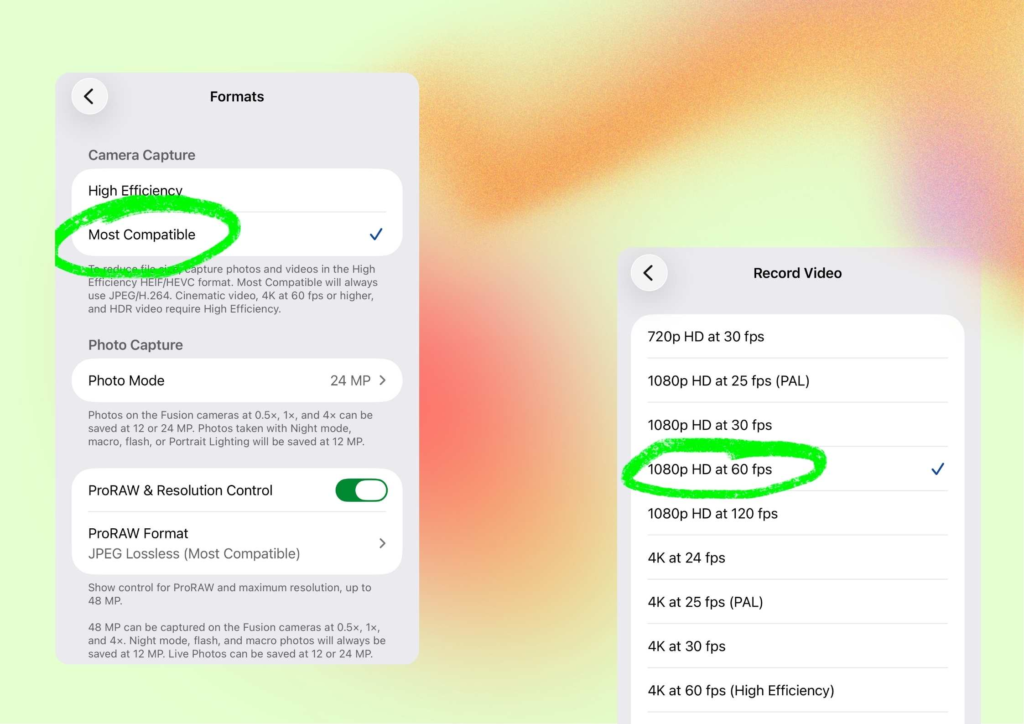
By default, many iPhone models save photos and videos using High Efficiency formats to save storage space. However, not all third-party platforms or rendering tools process this format optimally.
If you frequently record and upload content to Instagram, go to your camera settings and switch your capture format to Most Compatible so that your device saves assets in standard H.264/JPEG formats. This reduces the risk of compression errors or color shifts during editing and uploading, increasing the likelihood that your video retains its original crispness after Instagram processes the file.
Resolution and Frame Rate Standards for Reels
Recording at the highest available resolution does not always yield the best output on Instagram. Massive files are often heavily compressed by the platform before distribution, leading to a loss of fine details and sharpness.
For Reels, setting your camera to 1080p at 60 frames per second (fps) is the sweet spot in most scenarios. This setup produces smooth motion while maintaining a reasonable file size for Instagram’s upload pipeline to handle efficiently. As a result, your published videos maintain a stable, high-quality display across various viewing devices.
Utilizing Exposure and Focus Lock Features
When shooting outdoors or in environments with constantly changing lighting, the camera lens automatically recalibrates brightness and focus points. This can cause the frame to flicker or shift focus midway through a shot.
To prevent this issue, utilize the AE/AF Lock feature by tapping and holding on your subject on the screen before hitting record. Once activated, the focus point and exposure level remain locked, ensuring uniform video quality throughout the recording, especially when moving the camera or changing shooting angles.
Capitalizing on Cinematic Mode
For supported iPhone models, Cinematic Mode is an incredibly helpful tool to inject professional depth of field into your frames without requiring heavy cinema rigs. This technology highlights the subject using a natural background blur (bokeh) and smoothly shifts focus when new elements enter the scene.
You can leverage this mode to record talking-head advice, product showcases, behind-the-scenes office tours, or daily vlogs. When used intentionally, this cinematic depth makes your videos visually arresting, creating a premium look that boosts audience retention in the opening seconds.
Leveraging Exclusive Content Creation Tools within the Apple Ecosystem
One of the biggest advantages of iOS is its suite of built-in editing features, allowing users to process content rapidly without cluttering their devices with third-party software. Tapping into these native tools shortens post-production time, creates a cohesive visual style, and upgrades the quality of your assets before they go live on Instagram.
Turning Live Photos into Short-Form Moving Assets
Live Photos capture a few seconds of motion and sound before and after the shutter clicks, rather than just a frozen frame. Within the native Photos app, you can easily convert a Live Photo into a Loop effect to create continuous repeating motion without needing professional animation software.
These short moving elements are excellent for Stories, casual behind-the-scenes sneak peeks, or adding subtle motion to lifestyle posts. Utilizing Live Photos keeps your feed feeling active and dynamic compared to a standard static image.
Deploying Rapid Subject Cutouts
Visual Look Up is an incredibly efficient feature on modern iOS versions that allows you to separate a subject from its background simply by tapping and holding the object in an image. Once separated, you can copy or share the isolated asset as a transparent PNG for multiple design layouts.
This provides a lightning-fast way to create personalized stickers, custom overlays, or unique design elements for your Stories and carousel posts without touching complex desktop editors. Adding these custom graphic touches differentiates your content and reinforces your personal branding.
Establishing Personalized Visual Presets
The native iOS Photos app offers comprehensive adjustment controls, including exposure, contrast, highlights, shadows, saturation, and color balance. Instead of applying random filters, map out a specific editing formula that mirrors your brand identity.
Applying the exact same adjustment values across all your imagery creates a unified color story on your Instagram Grid, projecting a highly professional vibe. Furthermore, doing primary corrections inside the default app slashes the time needed before transferring images to layout or design software.
Automating Workflows via Shortcuts
For accounts pushing out a high volume of visual assets, the native Shortcuts app on iOS can automate repetitive editing workflows. You can build a custom sequence to batch-process images, covering everything from file renaming and resizing to integrating with assistant tools to slap on logos or brand watermarks before export.
Automating these steps saves significant chunks of production time when juggling multi-channel content pipelines, helping maintain strict brand consistency across uploads. Before running macro scripts, check shortcut compatibility with your current iOS version to ensure a smooth, stable deployment.
Utilizing iOS Multitasking Features for Channel Management
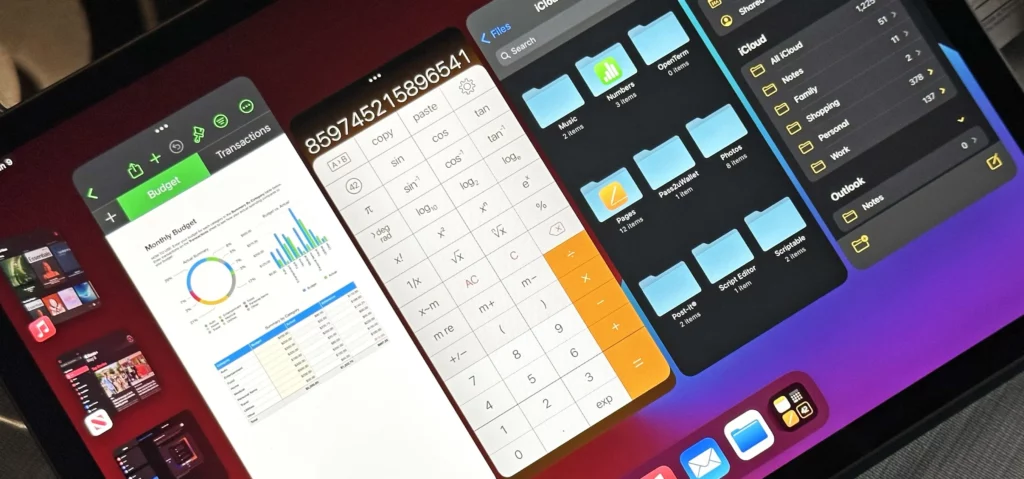
Beyond recording and editing, iOS offers built-in features that optimize how you manage your Instagram presence. While these productivity tools do not directly inject followers into your counter, they help you reply faster, operate efficiently, and maintain professional consistency while building your community.
Setting Up Text Replacement for Common Replies
If you find yourself repeatedly typing out identical greetings, links, or answers in direct messages and comment sections, you can leverage the Text Replacement feature on iOS to speed up your workflow.
By mapping a short text trigger, the system automatically expands it into a fully formed paragraph as you type. You can apply this to common introductions, thank-you notes, basic FAQs, or standard customer service links. This keeps your response times incredibly fast while ensuring your messaging remains uniform and professional.
Researching Trends via Picture-in-Picture Mode
The Picture-in-Picture (PiP) feature allows videos to play in a floating window while you navigate other applications. This is highly useful if you want to watch step-by-step tutorials, analyze marketing trends, or jot down notes while having the Instagram app open to practice techniques in real time.
Eliminating the need to constantly flip back and forth between apps makes learning and implementation seamless, maximizing your efficiency when studying new content formats.
Configuring Dedicated Focus Modes for Creation
When you are drafting scripts or prepping a post for upload, incoming push notifications can easily break your concentration. With Focus Mode, you can construct a custom environment dedicated entirely to content creation.
Configure your device to allow notifications only from critical applications or essential contacts during your creation window, silencing distracting alerts. This allows you to finish scripts, edit footage, and publish your content on schedule without unnecessary interruptions.
Syncing iCloud Contacts to Map Out Your Initial Network
During the early phases of building an account, connecting with people who already know you can help build an initial engagement foundation. If you choose to sync your device contacts with Instagram, the platform can use this data to suggest profiles of acquaintances who have saved your number or share mutual connections.
This feature simplifies finding friends, colleagues, or existing clients on the platform. However, review your privacy preferences before syncing and only activate this option if it aligns with your strategy. Securing a tight-knit initial circle of highly interested followers provides a healthier launchpad for long-term growth.
Contact Info
You need a Facebook advertising account but don’t know any reputable provider. Coming to Rentads is where you will experience what you need google account for rent prestige, high trust, and professional consulting and service support for customers.
Frequently Asked Questions
Not necessarily. In many cases, a well-optimized 1080p video retains a more stable display quality because it undergoes less aggressive compression by Instagram’s servers, which is particularly true for Reels.
Live Photos are perfect for crafting dynamic Stories, sharing casual behind-the-scenes clips, displaying quick product angles, or adding brief motion hooks to your posts without the need to record and edit full-length video files.

